C’est Quoi un VPS? Pas VPN

Un serveur privé virtuel (ou VPS pour Virtual Private Server en anglais) est un environnement de serveur virtuel qui fonctionne sur un serveur physique, mais qui est partitionné pour créer plusieurs serveurs indépendants. Chaque VPS fonctionne de manière autonome, avec son propre système d’exploitation, ses ressources (comme la mémoire RAM, le CPU et l’espace de stockage), et son accès root (ou administrateur), ce qui permet une gestion personnalisée.

Pour mieux comprendre :

  1. Virtualisation : Sur un serveur physique, la technologie de virtualisation permet de diviser les ressources matérielles en plusieurs serveurs virtuels, chacun ayant son propre environnement. C’est un peu comme si tu avais plusieurs ordinateurs dans un seul.
  2. Autonomie : Chaque VPS est isolé des autres. Cela signifie que si un autre VPS sur le même serveur rencontre un problème (comme une panne ou une surcharge), cela n’affecte pas les autres VPS.
  3. Ressources dédiées : Contrairement à l’hébergement mutualisé où les ressources (CPU, RAM, bande passante) sont partagées entre plusieurs utilisateurs, dans un VPS, tu disposes de ressources fixes et allouées spécifiquement à ton VPS.

Avantages d’un VPS :

  • Contrôle total : Tu peux installer et configurer des logiciels, gérer des mises à jour, personnaliser le système d’exploitation et les paramètres à ta guise.
  • Performances : Il offre de meilleures performances par rapport à l’hébergement mutualisé, car les ressources sont dédiées.
  • Scalabilité : Il est généralement possible d’augmenter les ressources du VPS (comme la RAM ou la capacité de stockage) en fonction de tes besoins, sans avoir à migrer vers un serveur dédié.
  • Prix abordable : Le VPS est moins cher qu’un serveur dédié tout en offrant un niveau de personnalisation et de contrôle proche.

Inconvénients :

  • Gestion : Il faut une certaine expertise technique pour administrer un VPS, car tu gères ton propre système d’exploitation et ses configurations.
  • Isolation partielle : Bien que chaque VPS soit isolé, il partage toujours le même serveur physique avec d’autres VPS, ce qui peut entraîner des limitations en cas de forte demande de ressources par d’autres utilisateurs sur le même serveur.

En résumé, un serveur privé virtuel est une solution d’hébergement entre l’hébergement mutualisé (moins cher, moins flexible) et le serveur dédié (plus coûteux, mais plus puissant), offrant un bon compromis pour les utilisateurs ayant des besoins spécifiques mais qui ne souhaitent pas investir dans un serveur physique complet.
Hyper-V: How to add more than 4 cores to a virtual machine

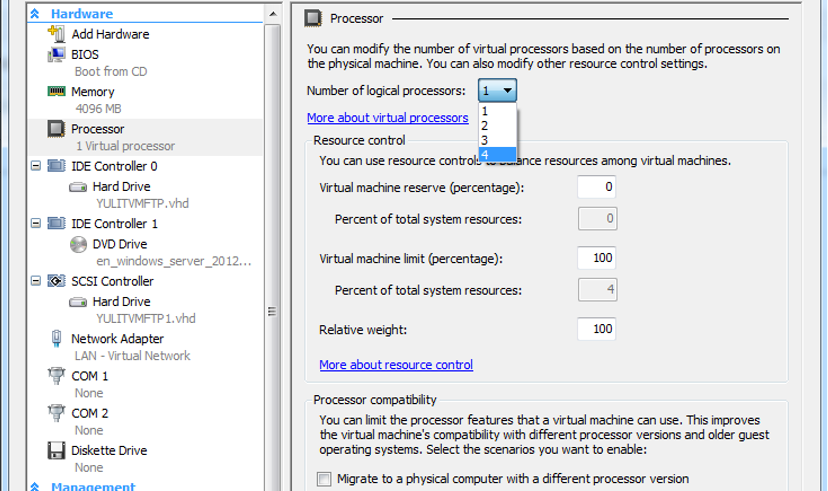
Windows Server 2008 R2 Hyper-V supports 4 cores per VM. Windows 8 Server will give us a lot of new features and upgrades, and will also support more than 4 cores per VM. They might even add multiple core support to the next SP for Server 2008 R2.

There is a way to add more cores to your VM by editing your VM’s XML file:

Step 1: Shut down your virtual machine
Step 2: Locate and open the XML configuration file of your VM. You can find the (default) location in the Hyper-V settings in the actions pane.

 Step 3: Edit the <count type=”integer”> setting and change the number in the desired amount of cores.

<processors>
<count type=”integer”>8</count>
….
….
< /processors>

 Step 4: Save the file
Step 5: Start the server and check in the task manager if your server has the correct amount of cores.

Non-Administrateurs Qui gére Hyper-V

Les derniers systèmes d’exploitation de Microsoft, à savoir Windows 8, Windows 8.1, Windows Server 2012 et 2012 R2, intègre un nouveau groupe de sécurité local qui permet à des utilisateurs non-administrateurs de la machine de gérer totalement l’application Hyper-V, et ce sans limite.

Ouvrez le gestionnaire de système sur votre machine : “Windows + X” – “Gestion de l’ordinateur“.

hyperv56

Une fois la console ouverte, cliquez sur “Outils système“, “Utilisateurs et groupes locaux“. Sous “Groupes” vous trouverez un groupe nommé “Administrateurs Hyper-V“.

hyperv57

Pour ajouter un utilisateur dans ce groupe, double cliquez dessus et de cliquer sur “Ajouter“.

L’ensemble des utilisateurs ajoutés à ce groupe de sécurité bien spécifique pourront accéder à la console d’administration d’Hyper-V et gérer totalement l’hyperviseur.

Par ailleurs, ces utilisateurs ne sont pas pour autant Administrateurs de la machine, c’est donc un accès privilégié, mais limité.

Hyper-V Snapshots

The Hyper-V snapshot feature allows you to capture the configuration and state of a virtual machine (VM) at any point in time, and return a VM to that state without noticeable interruption. When you take

a snapshot of a running VM, Hyper-V briefly pauses the VM to create a new automatic virtual hard disk (AVHD) which is essentially a differencing disk, attaches it to the VM to store changes to the VM data, saves the processor state into a file (.bin), then resumes the VM. Hyper-V also makes a copy of the VM configuration file (.xml), and saves the contents of the VM memory into a file (.vsv). Snapshots can also be created when a VM is turned-off, in which case Hyper-V does not need to capture VM memory or processor state data

Virtual machine snapshots are file-based snapshots of the state, disk data, and configuration of a virtual machine at a specific point in time. You can take multiple snapshots of a virtual machine, even while it is running. You can then revert the virtual machine to any of the previous states by applying a snapshot to the virtual machine.

To take a snapshot, you can use either Hyper-V Manager or Virtual Machine Connection. All of the other tasks you can perform with snapshots, such as applying or deleting a snapshot, or viewing a list of all snapshots for a specific virtual machine, are available through Hyper-V Manager. You also can inspect or edit the .avhd files, as well as determine which snapshot an .avhd file is associated with.

Windows Storage Server

Windows Storage Server is a version of Windows Server that’s licensed to OEMs for use in network-attached storage appliances. Windows Storage Server 2008 included a couple of features — namely single instance storage (file deduplication) and the Microsoft iSCSI Software Target — that differentiated it from other editions of Windows Server 2008. But there are no such distinguishing characteristics of Windows Storage Server 2012, which has no storage features beyond those found in every other edition of Windows Server 2012. Windows Storage Server 2012 is Windows Storage Server only because it is sold exclusively through Microsoft’s hardware partners with storage systems such as the HP StoreEasy 5530.

Windows Storage Server 2012 is available in Workgroup and Standard editions. The Workgroup license is limited to a single CPU socket, 32GB of RAM, six isks, and 250 concurrent SMB connections. The Standard license supports 64 CPU sockets and 2TB of RAM, and it has no restrictions on the number of disk drives or concurrent SMB connections. Standard also has a number of features — notably fail-over clustering, data deduplication, and the ability to host Hyper-V virtual machines — that you don’t get in the Workgroup edition.

Virtualization Tools Aren’t Just for Geeks

Virtualization software helps you run multiple operating systems on the same computer. For instance, you can use a virtualization tool like Apple Boot Camp or Parallels to run Windows on your Mac computer or you may use the free Virtual PC program from Microsoft to run Linux, DOS or even multiple Windows environments inside your Windows PC.

You may use these programs to try out other operating systems on your computer without disturbing the existing setup. Or, if you have upgraded to a newer OS, you can create a virtual machine of your previous OS and use it to run older programs that aren’t supported in your new OS. Or if you want to run multiple versions of the same software (like Photoshop CS4 and Photoshop CS5), you can install one of them on your main OS and the other inside a virtual machine.

Server Virtualization

Server virtualization or Hardware virtualization or platform virtualization refers to the creation of a virtual machine that acts like a real computer with an operating system.

Virtual machines are based on the host/guest paradigm. Each guest runs on a virtual imitation of the hardware layer. This approach allows  creation of guests that use different operating systems. The guest has no knowledge of the host’s operating system because it is not aware that it’s not running on real hardware. It does, however, require real computing resources from the host. Those resources can then be allocated on the guest machines (# of CPUs, memory, disk space, network adapters and more…)

Some of the most popular virtualization software include Microsoft Hyper-V, VMWare VSphere, Citrix Xenserver and VirtualBox.