What is Disk Defragmentation?

Disk defragmentation describes the process of consolidating fragmented files on your computer’s hard disk.

Fragmentation happens to a hard disk over time as you save, change, or delete files. The changes that you save to a file are often stored at a location on the hard disk that’s different from the original file. Additional changes are saved to even more locations. Over time, both the file and the hard disk itself become fragmented, and your computer slows down as it has to look in many different places to open a file.

Disk Defragmenter is a tool that rearranges the data on your hard disk and reunites fragmented files so your computer can run more efficiently. In this version of Windows, Disk Defragmenter runs on a schedule so you don’t have to remember to run it, although you can still run it manually or change the schedule it uses.
Why Use a Solid State Drive?

If you are looking at a modern laptop, chances are you will see some that come equipped with a solid state drive. Solid state drives have several advantages over the magnetic hard drives. The majority of this comes from the fact that the drive does not have any moving parts. While a traditional drive has drive motors to spin up the magnetic platters and the drive heads, all the storage on a solid state drive is handled by flash memory chips. This provides three distinct advantages:

  • Less Power Usage
  • Faster Data Access
  • Higher Reliability

Because there is no power draw for the motors, the drive uses far less energy than the regular hard drive. Since the drive does not have to spin up the drive platter or move drive heads, the data can be read from the drive near instantly. Hard drive platters are very fragile and sensitive materials. Even small jarring movements from an impact can cause the drive to be completely unreadable. Since the SSD stores all its data in memory chips, there are fewer moving parts to be damaged in any sort of impact.

Barracuda Spam & Virus Firewall

The Barracuda Spam & Virus Firewall is an integrated hardware and software solution designed to protect email servers from spam, virus, spoofing, phishing and spyware attacks. It leverages 12 comprehensive defense layers to provide industry-leading defense capabilities for any email server within large corporate or small business environments. It is compatible with all email servers.

Barracuda is one of the leading and most widely used spam filtering appliance. It eliminates spam and virus intrusions while safeguarding an organization’s reputation through content inspection based on policy for both inbound and outbound email. Outbound filtering also prevents confidential or sensitive information from being purposely or inadvertently leaked outside the organization.

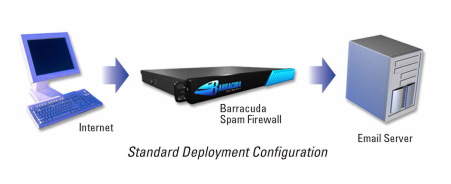
The standard deployment configuration of the Barracuda Spam Firewall consists of a single email server and a single Spam Firewall appliance. Simply connect the Barracuda Spam Firewall to your network by assigning it a new IP address and changing your MX record to point to the Barracuda Spam Firewall (see figure below). Alternatively, you may also give your email server a new IP address and give the old IP address to the Barracuda Spam Firewall. Other configurations include one  Barracuda unit and multiple email servers and multiple domains. For automatic scalability, redundancy and fault tolerance, you may cluster multiple Barracuda Spam Firewalls.

Looking for free Antivirus Software?

Antivirus Software provides an essential layer of protection from a multitude of virus, trojan, worm, spyware, adware, dialer, keylogger and rootkit infections.

Here are several free antivirus programs that you can evaluate and decide which one best suit your need:

1) Avast! Free Antivirus
http://www.avast.com/en-au/free-antivirus-download

2) Microsoft Security Essentials –
http://www.microsoft.com/Security_Essentials/

3) Panda Cloud Antivirus –
http://www.free-av.com/en/products/1/avira_antivir_personal__free_antivirus.html

4) AVG Anti-Virus Free Edition –
http://free.avg.com/au-en/homepage

5) Avira AntiVir Personal Edition –
http://www.free-av.com/en/products/1/avira_antivir_personal__free_antivirus.html

What is Forefront TMG?

Forefront Threat Management Gateway (TMG) is a multi-layered perimeter defense system. It’s a network security and protection solution from Microsoft, which they describe as « enables businesses by allowing employees to safely and productively use the Internet for business without worrying about malware and other threats. It’s an enterprise-class firewall with advanced web protection features such as URL filtering, gateway-integrated virus and malicious software scanning, network intrusion detection and prevention, and outbound HTTPS inspection, Forefront TMG provides exceptional protection from advanced, persistent threats. It also provides secure remote access to internal networks and applications and can serve as a consolidated secure mail relay.

Server Virtualization

Server virtualization or Hardware virtualization or platform virtualization refers to the creation of a virtual machine that acts like a real computer with an operating system.

Virtual machines are based on the host/guest paradigm. Each guest runs on a virtual imitation of the hardware layer. This approach allows  creation of guests that use different operating systems. The guest has no knowledge of the host’s operating system because it is not aware that it’s not running on real hardware. It does, however, require real computing resources from the host. Those resources can then be allocated on the guest machines (# of CPUs, memory, disk space, network adapters and more…)

Some of the most popular virtualization software include Microsoft Hyper-V, VMWare VSphere, Citrix Xenserver and VirtualBox.

Windows Firewall

Windows 7, Windows Vista, and Windows XP SP2 and higher have a Firewall built-in and turned on by default. A Firewall is a software program or piece of hardware that helps screen out hackers, viruses, and worms that try to reach your computer over the Internet.

To check your Firewall settings on a Windows 7 machine, go to Control Panel –>  Security –> Windows Firewall.