WSUS Content Folder is Full

Problem:

You’ve run out of space on your server and you find out that the WSUS Content Folder is full and it’s eating up space. The WSUS is Windows idea of a centralized update service. In theory, it downloads all the updates for your environment and then distributes them. It does not do a good job of cleaning itself up (consider the manual wizard cleanup) and it comes preconfigured to download the updates for all Windows products, not just the ones you need. As well, when you run the Cleanup Wizard, the console crashes.

Solution:

1. Open up WSUS Console
2. Go to options and only select the updates for the products you need


How to Do a Reset:

Note: You may want to execute the procedure below during off hours as your WSUS server will be downloading quite a bit of data.

1. Close any open WSUS consoles.
2. Go to Administrative Tools – Services and STOP the Update Services service.
3. In Windows Explorer browse to the WSUSContent folder (typically D:\WSUS\WSUSContent or C:\WSUS\WSUSContent)
4. Delete ALL the files and folders in the WSUSContent folder.
5. Go to Administrative Tools – Services and START the Update Services service.
6. Open a command prompt and navigate to the folder: C:\Program Files\Update Services\Tools.
7. Run the command WSUSUtil.exe RESET

This command tells WSUS to check each update in the database, and verify that the content is present in the WSUSContent folder. As it finds that the content is not present in the folder, it executes a BITS job to download the content from Microsoft. This process takes quite a bit of time and runs in the background.

Qu’est ce qu’un « Single Point of Failure » ?

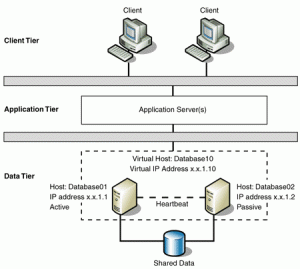
SPOF (Single Point of Failure) peut être traduit en français par « point individuel de défaillance ». Un point individuel de défaillance est, comme son nom l’indique, un point qui peut être identifié dans une infrastructure ou une architecture donnée comme étant critique pour cette infrastructure dans le cas où celui-ci vient à défaillir.

L’identification d’un SPOF dans une architecture informatique requiert d’avoir une vue d’ensemble, mais précise de tout ce qui la compose. Un SPOF est un point critique pour une architecture informatique ou un LAN, car il peut rapidement être identifié comme une cible de choix pour mettre à mal un ensemble de machines ou un service. La mise en redondance d’éléments comme des routeurs ou des serveurs offrant des services est de faire en sorte que si l’un tombe ou est surchargé, l’autre prenne le relais.

Connaissant ce principe de fonctionnement, un pirate expérimenté ne perdra pas son temps à attaquer des équipements redondés, seulement s’il a identifié le SPOF qui est le routeur, il deviendra une cible prioritaire, car faire tomber le routeur reviendra à faire tomber le reste de l’infrastructure qui deviendra injoignable. En sécurité informatique, la sécurité de l’ensemble est évaluée par la sécurité la plus basse évaluée sur chacun des composants, lorsque l’on entame des redondances pour mettre un service en mode « haute disponibilité« , il est important de le faire sur toute la chaîne de traitement pour ne pas laisser apparaître de SPOF sur celle-ci.

Windows To Go, c’est quoi ?

Disponible depuis Windows 8 Entreprise, la fonctionnalité « Windows To Go » permet d’installer le système d’exploitation Windows sur une clé USB « bootable ». On parlera alors d’un « espace de travail Windows To Go » et l’on réduit généralement le nom de la fonctionnalité en « WTG ».  Seules les éditions Entreprises de Windows 8 et Windows 8.1 peuvent être déployées sur une clé USB par le biais de Windows To Go.

En utilisant Windows To Go, vous vous adapterez à différents scénarios que l’on retrouve en entreprise, ainsi en utilisant un espace de travail Windows To Go on pourra :

– Utiliser sa machine personnelle au bureau ou à la maison au lieu d’emporter un second ordinateur à usage professionnel

– Mise à disposition d’un espace de travail opérationnel aux intervenants extérieurs qui viennent dans votre entreprise et apportent leur machine

– Utiliser un système sur n’importe quelle machine à disposition, sans avoir sa propre machine toujours avec soi

Vous l’aurez compris, Windows To Go rend plus flexibles la mobilité des utilisateurs et par la même occasion votre parc de machines. L’adoption de WTG rentre très bien dans le cadre de la mise en place d’un programme BYOD (Bring Your Own Device)

RODC: Contrôleur de domaine en lecture seule

Une nouveauté intéressante est présente depuis Windows Server 2008, il s’agit de la possibilité de définir un contrôleur de domaine en lecture seule, ce que l’on appelle aussi «RODC » pour « Read Only Domain Controller ».

L’intérêt est d’avoir un contrôleur de domaine qui contient toutes les informations qu’un contrôleur classique dispose, à l’exception des mots de passe utilisateurs. De plus, ces informations étant stockées en lecture seule aucune modification ne peut être initiée depuis un contrôleur de domaine en lecture seule.

Dans certaines entreprises, il y a plusieurs sites avec plus ou moins de personnes donc de machines à gérer. Ces personnes, au même titre que les autres personnes de l’entreprise doivent généralement pouvoir accéder aux ressources de l’entreprise, en s’authentifiant grâce à un couple identifiant – mot de passe leur appartenant.

Ces phases d’authentification consomment de la bande passante lors de la connexion sur la machine, de l’accès aux données contrôlées, etc.

Vous pouvez être réticent à l’idée de mettre en place un contrôleur de domaine supplémentaire sur ce site afin d’améliorer les performances, puisque, la sécurité physique ne sera pas forcément assurée si le serveur se trouve dans le coin d’un bureau… De plus, financièrement ce n’est pas toujours évident d’avoir un administrateur système et réseau sur place, à temps plein, pour surveiller et administrer le serveur (et ce n’est pas forcément nécessaire).

C’est là que le contrôleur de domaine RODC a tout son intérêt. Étant donné que l’on peut déterminer avec précision quels sont les mots de passe à stocker sur le serveur RODC, donc, en cas de corruption/de vol du serveur, la perte sera moindre.

Si c’est seulement des comptes utilisateurs standards qui sont dérobés, c’est moins grave qu’un compte Admin du domaine…

Les requêtes DNS sont également mises en cache car le serveur RODC peut avoir le rôle de serveur DNS de cache. Là encore, il sera en lecture seule sur les fichiers de zone et ne pourra pas effectuer de modifications mais il subira les modifications effectuées sur le ou les serveurs DNS depuis le(s)quel(s) il se réplique.

Le cache générera moins de trafic sur la liaison WAN, consommera moins de bande passante, ce qui ne pourra qu’être bénéfique.

La mise en cache des requêtes d’authentification permet d’économiser de la bande passante dans le cas où la requête est en cache, et, dans le cas où le RODC est autorisé à mettre en cache le mot de passe de l’utilisateur.

Si la requête n’est pas en cache, elle sera effectuée sur un contrôleur de domaine standard qui retournera la réponse. Elle sera ensuite mise en cache automatiquement seulement si cela est permit pour l’utilisateur concerné.

Fin du support Microsoft Windows XP

Depuis le 8 avril 2014, le support et les mises à jour de Windows XP ne sont plus disponibles.

windows-xp-end-of-support


En quoi consiste la fin du support de Windows XP ?

Une version de Windows non prise en charge ne recevra plus de mises à jour logicielles de Windows Update. Celles-ci incluent des mises à jour de sécurité qui permettent de protéger votre ordinateur contre les virus dangereux, les logiciels espions et autres programmes malveillants susceptibles de voler vos informations personnelles. Windows Update installe également les dernières mises à jour logicielles pour améliorer la fiabilité de Windows

Si vous continuez d’utiliser Windows XP après la fin du support, votre ordinateur fonctionnera encore, mais il pourrait devenir plus vulnérable face aux risques de sécurité et aux virus.

Outre les problèmes de sécurité, des problèmes de compatibilité pourront nuire à vos activités puisque de plus en plus de logiciels ou mises à jour de logiciels ne sont pas compatibles avec Microsoft Windows XP.

L’exécution d’un système d’exploitation qui n’est plus pris en charge peut également soulever de sérieux problèmes en termes de réglementations et de conformité pour certains types d’entreprises.

Comment rester protégé ?

Pour rester protégé après la fin du support, deux options s’offrent à vous :

    1. Mettre à jour votre PC actuel

Vous pouvez installer ou mettre à jour votre ordinateur actuel vers Microsoft Windows 7 (toujours disponible pour achat) ou Microsoft Windows 8.1. Nous vous recommandons de télécharger et d’exécuter l’Assistant Mise à niveau de Windows pour vérifier si votre PC possède la configuration minimale pour cette mise à niveau.

    1. Acheter un nouveau PC

Si votre ordinateur actuel ne peut pas exécuter Windows 7 ou Windows 8.1, vous pouvez vous procurer un nouvel ordinateur. En achetant ce nouvel ordinateur, la licence de Windows 7 ou Windows 8 sera incluse pour son installation.

Microsoft Exchange Sever 2013

Microsoft Exchange Server 2013 enables you to maintain control, increase user productivity, and keep your organization safe. You can move to the cloud on your terms with flexible migration options. Your users can do more on any device, helping them manage increasing volumes of email and work together more effectively as teams. You can also protect your business communications and sensitive information, while meeting internal and regulatory compliance requirements. With Exchange Server 2013, you can work smarter, anywhere.

  • Remain in control, online and on-premises.
    Exchange Server 2013 enables you to tailor your solution based on your unique needs and ensures your communications are always available while you remain in control, on your own terms – online, on-premises, or a hybrid of the two.
  • Do more, on any device.
    Exchange Server 2013 helps your users be more productive by helping them manage increasing volumes of communications across multiple devices and work together more effectively as teams.
  • Keep your organization safe.
    Exchange Server 2013 keeps your organization safe by enabling you to protect business communications and sensitive information to meet internal and regulatory compliance requirements.

Microsoft Exchange Server 2013 Preview brings a new rich set of technologies, features, and services to the Exchange Server product line. Its goal is to support people and organizations as their work habits evolve from a communication focus to a collaboration focus. At the same time, Exchange Server 2013 Preview helps lower the total cost of ownership whether you deploy Exchange 2013 Preview on-premises or provision your mailboxes in the cloud. New features and functionality in Exchange 2013 Preview are designed to do the following:

  • Support a multigenerational workforce   Social integration and making it easier to find people is important to users. Smart Searchlearns from users’ communication and collaboration behavior to enhance and prioritize search results in Exchange. Also, with Exchange 2013 Preview, users can merge contacts from multiple sources to provide a single view of a person, by linking contact information pulled from multiple locations.
  • Provide an engaging experience   Microsoft Outlook 2013 Preview and Microsoft Office Outlook Web App have a fresh new look. Outlook Web App emphasizes a streamlined user interface that also supports the use of touch, enhancing the mobile device experience with Exchange.
  • Integrate with SharePoint and Lync   Exchange 2013 Preview offers greater integration with Microsoft SharePoint 2013 Preview and Microsoft Lync 2013 Preview through site mailboxes and In-Place eDiscovery.
  • Help meet evolving compliance needs    Compliance and eDiscovery are challenging for many organizations. Exchange 2013 Preview helps you to find and search data not only in Exchange, but across your organization. With improved search and indexing, you can search across Exchange 2013 Preview, Lync 2013 Preview, SharePoint 2013 Preview, and Windows file servers.
  • Provide a resilient solution   Exchange 2013 Preview builds upon the Exchange Server 2010 architecture and has been redesigned for simplicity of scale, hardware utilization, and failure isolation.

Failover Clusters

A failover cluster also known as high availability cluster is a group of independent computers that work together to inHAcrease the availability of applications and services. The clustered servers (called nodes) are connected by physical cables and by software. If one of the cluster nodes fails, another node begins to provide service (a process known as failover). Users experience a minimum of disruptions in service. By using a failover cluster, you can ensure that users have nearly constant access to important server-based resources.

Without clustering, if a server running a particular application crashes, the application will be unavailable until the crashed server is fixed. HA clustering remedies this situation by detecting hardware/software faults, and immediately restarting the application on another system without requiring administrative intervention.

Windows Storage Server

Windows Storage Server is a version of Windows Server that’s licensed to OEMs for use in network-attached storage appliances. Windows Storage Server 2008 included a couple of features — namely single instance storage (file deduplication) and the Microsoft iSCSI Software Target — that differentiated it from other editions of Windows Server 2008. But there are no such distinguishing characteristics of Windows Storage Server 2012, which has no storage features beyond those found in every other edition of Windows Server 2012. Windows Storage Server 2012 is Windows Storage Server only because it is sold exclusively through Microsoft’s hardware partners with storage systems such as the HP StoreEasy 5530.

Windows Storage Server 2012 is available in Workgroup and Standard editions. The Workgroup license is limited to a single CPU socket, 32GB of RAM, six isks, and 250 concurrent SMB connections. The Standard license supports 64 CPU sockets and 2TB of RAM, and it has no restrictions on the number of disk drives or concurrent SMB connections. Standard also has a number of features — notably fail-over clustering, data deduplication, and the ability to host Hyper-V virtual machines — that you don’t get in the Workgroup edition.

WPA vs WPA2 for Wireless Security

As the name suggests, WPA2 is a second, newer version of Wireless Protected Access (WPA) security and access control technology for Wi-Fi wireless networking. WPA2 is available on all certified Wi-Fi hardware since 2006 and was an optional feature on some products before that. It is designed to improve the security of Wi-Fi connections by requiring use of stronger wireless encryption than what WPA requires. Specifically, WPA2 does not allow use of an algorithm called TKIP (Temporal Key Integrity Protocol) that has known security holes (limitations).

Most wireless routers for home networks support both WPA and WPA2 and administrators must choose which one to run. Obviously, WPA2 is the simpler, safer choice. Some techies point out that using WPA2 requires Wi-Fi hardware to work harder in running the more advanced encryption algorithms, which can theoretically slow down the network’s overall performance compared to running WPA. Network owners can make their own choice but should run experiments to decide whether they notice any difference in their networks speeds with WPA2 vs. WPA.

Windows 8.1 for Business

Someone’s business device should be just as customized, responsive, and easy to use as their own personal device. Each person in your organization has unique needs. Some need a highly mobile, always connected device. Others need the high performance of a notebook packed with features. Windows 8.1 provides flexibility and choice across a range of options–touch, type, or voice input–individuals can choose the device that best fits their needs.

Workers can customize their Windows 8.1 Preview device to suit their individual needs and work styles. Multiple windows and multimonitor enhancements allow workers to arrange their apps, sites, customize their Start screen, and change their desktop just the way they need to. IT professionals can allow workers to customize their Start screen with relevant apps and live tiles or they can choose to manage the Start screen experience through Group Policy either for individuals or for groups.

With new desktop enhancements, including the new Start button, workers can easily transition between the Start screen and the desktop. IT professionals can also customize the Start button to open the Apps view, which provides a complete list of installed apps. This list can be reordered by category, date, or name, and desktop apps can appear at the front of the list. Windows 8.1 can also boot right to the desktop. In fact, you can start directly in any view– the Start screen, Apps view, the desktop, or even a single app. Make important apps easily accessible in the Start screen on company-issued devices. This includes the ability to manage different Start screen configurations for different groups and roles by using Group Policy.

With assigned access, you can enable a single Windows Store app experience on dedicateduse devices. You might want to run a customer service app in a retail store device, or have a single learning app running in school. Enabling assigned access turns on a predefined set of  filters that blocks other actions so the specified app runs and system files and other apps can’t be accessed. Windows 8.1 makes managing personal devices much easier for Bring Your Own Devices

(BYOD) programs. New features make it possible to more securely allow access to corporate resources–like work folders, apps, and services–from any Internet connection. The management,security, monitoring, and compliance benefits of Windows Server,
Active Directory, Group Policy, Domain Join, System Center, Windows Intune, and MDOP, can continue to support devices running Windows 8.1. You can also benefit from the high levels of hardware and software compatibility with Windows 8.1. The majority of Windows
desktop apps and Windows Store apps will run on Windows 8.1.

Windows 8.1 Preview delivers enterprise-grade security through enhanced access control, improved data protection, and new features that make devices less susceptible to malware threats. Windows 8.1 Preview and Windows Server together introduce many features that make  it easier for you to embrace BYOD programs, keeping your people productive on their own mobile devices, while company information is protected. Windows 8.1 gives you more options to manage user-owned and controlled devices. New Open Mobile Alliance Device Management (OMA-DM) capabilities are built in and enable mobile device management using third-party MDM solutions with no additional agent required. Enhanced policies allow you to manage more settings from both Windows Intune and the third-party MDM solutions for both Windows 8.1 and Windows RT 8.1 devices.

Windows 8.1 personal devices include an option to join the workplace, allowing workers to access network resources, such as a SharePoint site from their personal devices. They can also choose to enroll in the device management service, to gain access to access
to the company portal, get corporate apps, and manage their own device. With work folders, they can access their work files across all their devices, with automatic synchronization to your file servers in your data center and back out to their other devices. IT professionals can enforce dynamic access control policies on the Work Folder Sync Share (including automated rights management.) When workers remove their device from the corporate network, the corporate data can no longer be accessed.