Failover Clusters

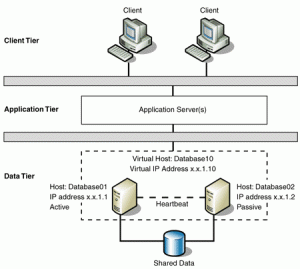
A failover cluster also known as high availability cluster is a group of independent computers that work together to inHAcrease the availability of applications and services. The clustered servers (called nodes) are connected by physical cables and by software. If one of the cluster nodes fails, another node begins to provide service (a process known as failover). Users experience a minimum of disruptions in service. By using a failover cluster, you can ensure that users have nearly constant access to important server-based resources.

Without clustering, if a server running a particular application crashes, the application will be unavailable until the crashed server is fixed. HA clustering remedies this situation by detecting hardware/software faults, and immediately restarting the application on another system without requiring administrative intervention.

Windows Storage Server

Windows Storage Server is a version of Windows Server that’s licensed to OEMs for use in network-attached storage appliances. Windows Storage Server 2008 included a couple of features — namely single instance storage (file deduplication) and the Microsoft iSCSI Software Target — that differentiated it from other editions of Windows Server 2008. But there are no such distinguishing characteristics of Windows Storage Server 2012, which has no storage features beyond those found in every other edition of Windows Server 2012. Windows Storage Server 2012 is Windows Storage Server only because it is sold exclusively through Microsoft’s hardware partners with storage systems such as the HP StoreEasy 5530.

Windows Storage Server 2012 is available in Workgroup and Standard editions. The Workgroup license is limited to a single CPU socket, 32GB of RAM, six isks, and 250 concurrent SMB connections. The Standard license supports 64 CPU sockets and 2TB of RAM, and it has no restrictions on the number of disk drives or concurrent SMB connections. Standard also has a number of features — notably fail-over clustering, data deduplication, and the ability to host Hyper-V virtual machines — that you don’t get in the Workgroup edition.

Windows 8.1 for Business

Someone’s business device should be just as customized, responsive, and easy to use as their own personal device. Each person in your organization has unique needs. Some need a highly mobile, always connected device. Others need the high performance of a notebook packed with features. Windows 8.1 provides flexibility and choice across a range of options–touch, type, or voice input–individuals can choose the device that best fits their needs.

Workers can customize their Windows 8.1 Preview device to suit their individual needs and work styles. Multiple windows and multimonitor enhancements allow workers to arrange their apps, sites, customize their Start screen, and change their desktop just the way they need to. IT professionals can allow workers to customize their Start screen with relevant apps and live tiles or they can choose to manage the Start screen experience through Group Policy either for individuals or for groups.

With new desktop enhancements, including the new Start button, workers can easily transition between the Start screen and the desktop. IT professionals can also customize the Start button to open the Apps view, which provides a complete list of installed apps. This list can be reordered by category, date, or name, and desktop apps can appear at the front of the list. Windows 8.1 can also boot right to the desktop. In fact, you can start directly in any view– the Start screen, Apps view, the desktop, or even a single app. Make important apps easily accessible in the Start screen on company-issued devices. This includes the ability to manage different Start screen configurations for different groups and roles by using Group Policy.

With assigned access, you can enable a single Windows Store app experience on dedicateduse devices. You might want to run a customer service app in a retail store device, or have a single learning app running in school. Enabling assigned access turns on a predefined set of  filters that blocks other actions so the specified app runs and system files and other apps can’t be accessed. Windows 8.1 makes managing personal devices much easier for Bring Your Own Devices

(BYOD) programs. New features make it possible to more securely allow access to corporate resources–like work folders, apps, and services–from any Internet connection. The management,security, monitoring, and compliance benefits of Windows Server,
Active Directory, Group Policy, Domain Join, System Center, Windows Intune, and MDOP, can continue to support devices running Windows 8.1. You can also benefit from the high levels of hardware and software compatibility with Windows 8.1. The majority of Windows
desktop apps and Windows Store apps will run on Windows 8.1.

Windows 8.1 Preview delivers enterprise-grade security through enhanced access control, improved data protection, and new features that make devices less susceptible to malware threats. Windows 8.1 Preview and Windows Server together introduce many features that make  it easier for you to embrace BYOD programs, keeping your people productive on their own mobile devices, while company information is protected. Windows 8.1 gives you more options to manage user-owned and controlled devices. New Open Mobile Alliance Device Management (OMA-DM) capabilities are built in and enable mobile device management using third-party MDM solutions with no additional agent required. Enhanced policies allow you to manage more settings from both Windows Intune and the third-party MDM solutions for both Windows 8.1 and Windows RT 8.1 devices.

Windows 8.1 personal devices include an option to join the workplace, allowing workers to access network resources, such as a SharePoint site from their personal devices. They can also choose to enroll in the device management service, to gain access to access
to the company portal, get corporate apps, and manage their own device. With work folders, they can access their work files across all their devices, with automatic synchronization to your file servers in your data center and back out to their other devices. IT professionals can enforce dynamic access control policies on the Work Folder Sync Share (including automated rights management.) When workers remove their device from the corporate network, the corporate data can no longer be accessed.

Microsoft Software Assurance

Microsoft Software Assurance (SA) is a Microsoft maintenance program aimed at business users who use Microsoft Windows, Microsoft Office, and other server and desktop applications. The core premise behind SA is to give users the ability to spread payments over multiple years, while offering « free » upgrades to newer versions during that time period.

The full list of benefits, effective March 2006, are as follows:

  • Free upgrades: Subscribers may upgrade to newer versions of their Microsoft software
  • Access to exclusive software products
  • Training: Free training from Microsoft and access to Microsoft E-Learning, a series of interactive online training tools for users. This training can only be taken at a Microsoft Certified Partner for Learning Solutions and can only be redeemed for training that is categorized as Microsoft Official Curriculum.
  • Home use: Employees of a company with SA can use an additional copy of Microsoft software
  • Access to source code for larger companies (1,500+ desktops)
  • 24×7 telephone and web support
  • Additional error reporting tools
  • Free licenses for additional servers provisioned as « Cold backups » of live servers
  • Access to Microsoft TechNet managed newsgroups
  • Access to Microsoft TechNet downloads for 1 user
  • Extended Hotfix support: Typically Microsoft charges for non-security hotfixes after mainstream support for the product has ended (e.g. 5 years for Windows); this charge is waived for SA customers

All benefits are generated by a Benefits Administrator at the customer organization and can be managed on the Microsoft Volume Licensing Service Center.

Versions of Windows 8

Windows8

Windows 8
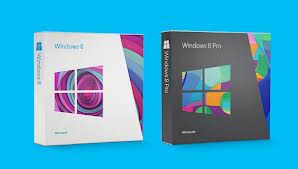
Windows 8 is the basic edition of Windows. This edition contains features aimed at the home users and provides all of the basic new Windows 8 features including the Start screen with semantic zoom, live tiles, Windows Store, Internet Explorer 10, connected standby, Microsoft account integration, the Windows desktop and more.


Windows 8 Pro
Windows 8 Pro is comparable to Windows 7 Professional and Ultimate and is targeted towards enthusiasts and business users; it includes all the features of Windows 8. Additional features include the ability to receive Remote Desktop connections, the ability to participate in a Domain, Encrypting File, Hyper-V, Group Policy, as well as  BitLocker.


Windows 8 Enterprise
Windows 8 Enterprise provides all the features in Windows 8 Pro (except the ability to install the Windows Media Center add-on), with additional features to assist with IT organization. This edition is available to Software Assurance customers, as well as MSDN and Technet Professional subscribers.


Windows RT
Windows RT will only be available pre-installed on ARM-based devices such as tablet PCs. It will include touch-optimized desktop versions of the basic set of Office 2013 applications to users and support device encryption capabilities. Several business-focused features such as Group Policy and domain support are not included.
Desktop software that run on previous versions of Windows cannot be run on Windows RT.

Unlike Windows Vista and Windows 7, there are no Starter, Home Basic, Home Premium, or Ultimate editions.

Microsoft Office 2013

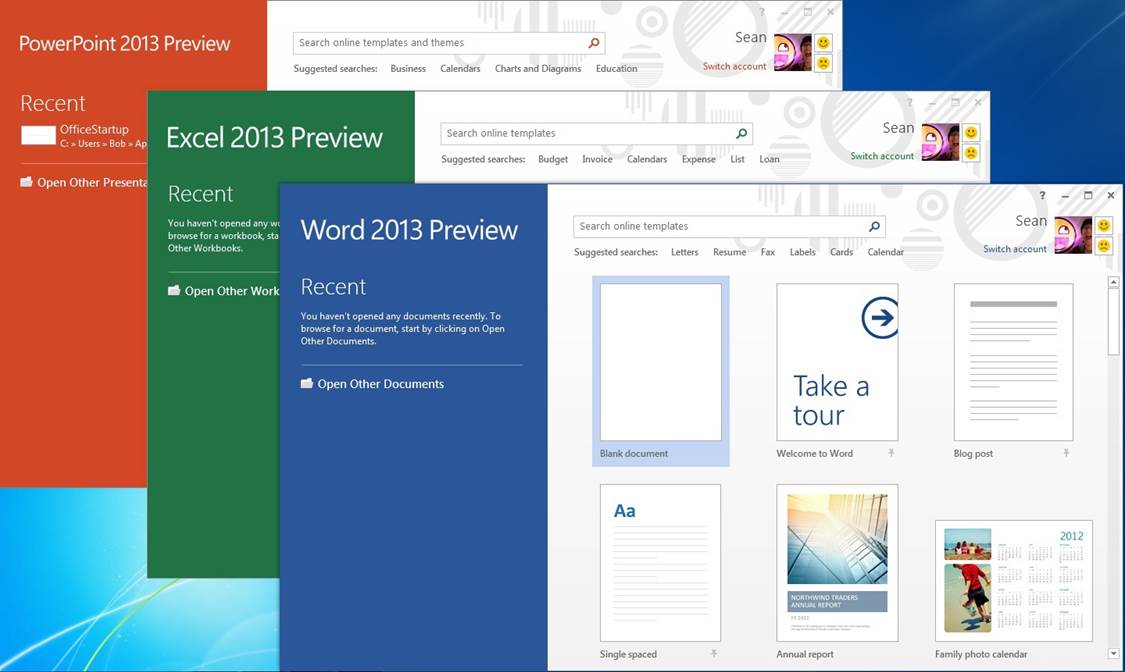
The interface across the entire suite of applications has been reinvented, mostly for the better. First off, the Ribbon, which disappointed many users when it first appeared in Office 2007, remains part of the new Office. But before you start grumbling, consider that Microsoft has made it optional this time around. So now you can show or hide the exhaustive collections of tools across every tab, and decide how much or how little you want to use them.
Aside from the Ribbon, the interface is similar but much simpler than it was in Office 2010 and earlier. Newly added start pages for Word, PowerPoint, and Excel help you get to recent documents attached to your account and new templates immediately upon launch. Flat buttons and plenty of white space make the interface look less crowded. Other interface tweaks are tablet-focused such as the radial menus in OneNote that show options (like sharing, search, and zoom tools) in a circle around the area you press. The general feel of the suite is more streamlined and more cloud-integrated, and the new start pages for the core apps will be especially useful for those looking at the same documents on several devices.

Office2013

Though you can only use Office 365 with a subscription on five machines, another new feature called Office on Demand will come in handy whenever you’re away from your selected devices. This feature lets you download a full copy of the software you need (such as Word or Excel) on any PC running Windows 7 or later, and shows you your recent documents just as you’d see them at home. When you’re finished making changes or edits to a document, you can close the application and it is removed from the PC you’re working on.

Office 365

Office 365 primarily denotes a set of subscription based software services that require monthly or periodic payment of fees to Microsoft Corporation.By contrast, Office 20XX generally refers to a suite of desktop applications that alone by themselves are not subscription based and do not carry monthly fees.

Although Office 365 also often refers to cloud-based services rather than desktop applications, certain Office 365 subscription plans include a subscription to Office 20XX desktop applications in addition to cloud-based services. The subscription to Office 20XX desktop applications, by virtue of the subscription, makes the subscription part of an Office 365 offering.

Office 365 was initially announced in the autumn of 2010, and was made available to the public on June 28, 2011. The initial subscription plans included a Professional plan (for organizations of 25 and smaller) and an Enterprise plan (for organizations with more individuals). Depending on the subscription plan, Office 365 can include a subscription to Office 20XX desktop applications, in addition to hosted versions of Microsoft’s Server products (including Exchange Server, SharePoint Server, and Lync Server) that are delivered and accessed over the Internet, in effect, the next version of Business Productivity Online Suite (BPOS).

What is Disk Defragmentation?

Disk defragmentation describes the process of consolidating fragmented files on your computer’s hard disk.

Fragmentation happens to a hard disk over time as you save, change, or delete files. The changes that you save to a file are often stored at a location on the hard disk that’s different from the original file. Additional changes are saved to even more locations. Over time, both the file and the hard disk itself become fragmented, and your computer slows down as it has to look in many different places to open a file.

Disk Defragmenter is a tool that rearranges the data on your hard disk and reunites fragmented files so your computer can run more efficiently. In this version of Windows, Disk Defragmenter runs on a schedule so you don’t have to remember to run it, although you can still run it manually or change the schedule it uses.

Why Use a Solid State Drive?

If you are looking at a modern laptop, chances are you will see some that come equipped with a solid state drive. Solid state drives have several advantages over the magnetic hard drives. The majority of this comes from the fact that the drive does not have any moving parts. While a traditional drive has drive motors to spin up the magnetic platters and the drive heads, all the storage on a solid state drive is handled by flash memory chips. This provides three distinct advantages:

  • Less Power Usage
  • Faster Data Access
  • Higher Reliability

Because there is no power draw for the motors, the drive uses far less energy than the regular hard drive. Since the drive does not have to spin up the drive platter or move drive heads, the data can be read from the drive near instantly. Hard drive platters are very fragile and sensitive materials. Even small jarring movements from an impact can cause the drive to be completely unreadable. Since the SSD stores all its data in memory chips, there are fewer moving parts to be damaged in any sort of impact.

Server Virtualization

Server virtualization or Hardware virtualization or platform virtualization refers to the creation of a virtual machine that acts like a real computer with an operating system.

Virtual machines are based on the host/guest paradigm. Each guest runs on a virtual imitation of the hardware layer. This approach allows  creation of guests that use different operating systems. The guest has no knowledge of the host’s operating system because it is not aware that it’s not running on real hardware. It does, however, require real computing resources from the host. Those resources can then be allocated on the guest machines (# of CPUs, memory, disk space, network adapters and more…)

Some of the most popular virtualization software include Microsoft Hyper-V, VMWare VSphere, Citrix Xenserver and VirtualBox.