
All good things must come to an end, even Windows 7. After January 14, 2020, Microsoft will no longer provide security updates or support for PCs running Windows 7. But you can keep the good times rolling by moving to Windows 10.
You can continue to use Windows 7, but once support ends, your PC will become more vulnerable to security risks. Windows will operate but you will stop receiving security and feature updates.
As long as your PCs meet the hardware requirements, should be able to upgrade to Windows 10, with a valid license.
| Windows operating system | Latest update or service pack | End of mainstream support | End of extended support |
|---|---|---|---|
| Windows XP | Service Pack 3 | 14 April 2009 | 8 April 2014 |
| Windows Vista | Service Pack 2 | 10 April 2012 | 11 April 2017 |
| Windows 7 | Service Pack 1 | 13 January 2015 | 14 January 2020 |
| Windows 8 | Windows 8.1 | 9 January 2018 | 10 January 2023 |
| Windows 10 | Service updates provided every March and September | Refer to Microsoft Product Lifecycle database | 14 October 2025 |
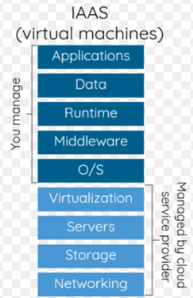 Infrastructure as a service (IaaS) is a form of cloud computing that provides virtualized computing resources over the internet.
 does functionally everything a hard drive does, but data is instead stored on interconnected flash memory chips that retain the data even when there’s no power present.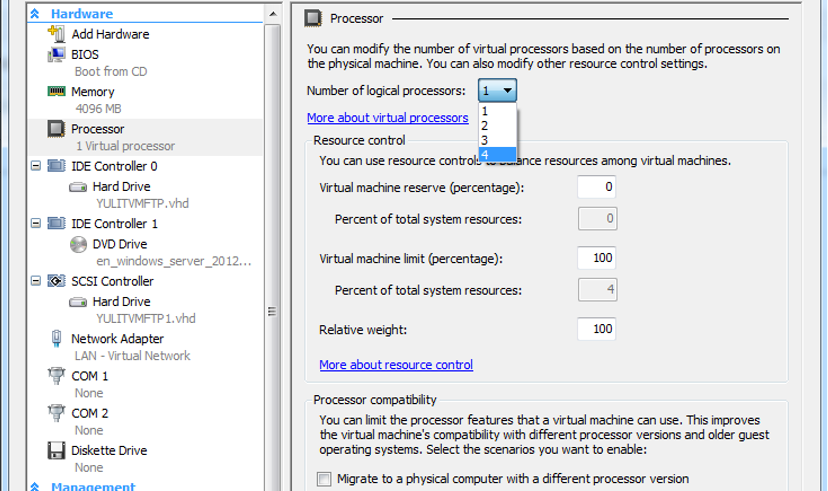
 In essence, this vulnerability allows an attacker to read information that was previously assumed to be safely encrypted over Wi-Fi. Although it is difficult for the average person to hack your system, this is a weakness that is worth being aware of.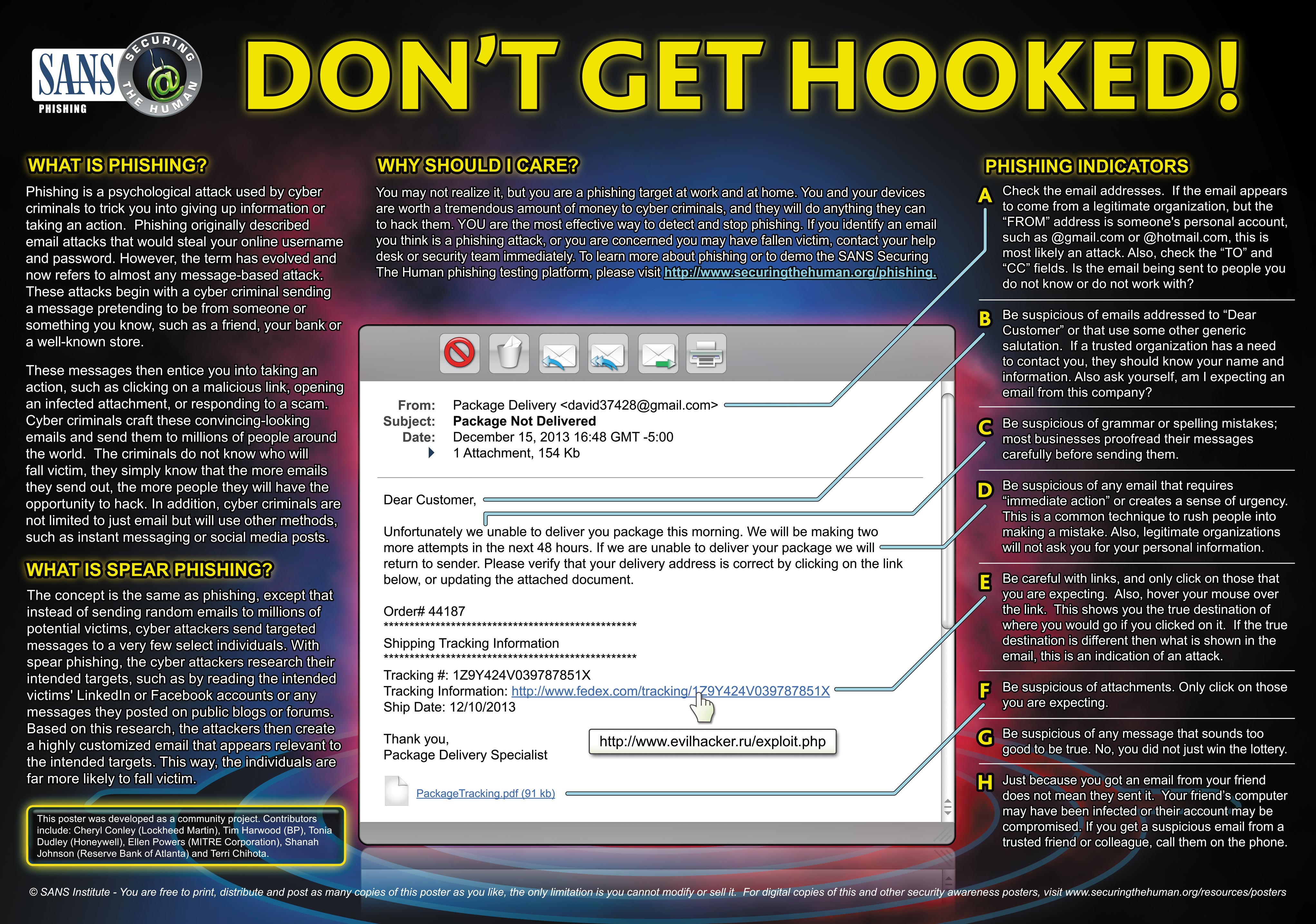

 Services Informatiques