CDN (Content Delivery Network)

A content delivery network or content distribution network (CDN) is a large distributed system of servers deployed in multiple data centers across the internet. The goal of a CDN is to serve content to end-users with high availability and high performance. CDNs serve a large fraction of the Internet content today, including web objects (text, graphics and scripts), downloadable objects (media files, software, documents), applications (e-commerce, portals), streaming media, on-demand streaming media, and social networks.

The use of CDN technology has obvious economic advantages to enterprises who expect, or experience, large numbers of hits on their Web sites from locations all over the world. If dozens or hundreds of other users happen to select the same Web page or content simultaneously, the CDN sends the content to each of them without delay or time-out. Problems with excessive latency, as well as large variations in latency from moment to moment (which can cause annoying « jitter » in streaming audio and video), are minimized. The bandwith each user « sees » is maximized. The difference is noticed most by users with high-speed Internet connections who often demand streaming content or large files.

Another advantage of CDN technology is content redundancy that provides a fail-safe feature and allows for graceful degradation in the event of damage to, or malfunction of, a part of the Internet. Even during a large-scale attack that disables many servers, content on a CDN will remain available to at least some users. Still another advantage of CDN technology is the fact that it inherently offers enhanced data backup, archiving, and storage capacity. This can benefit individuals and enterprises who rely on online data backup services.

What is a Cluster?

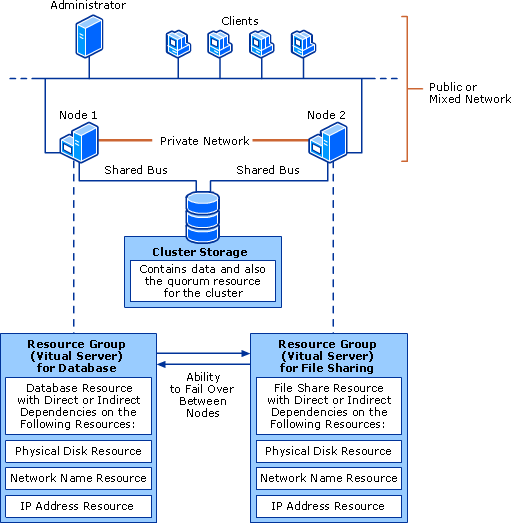
Microsoft Cluster Server (MSCS) is computer program that allows servers to work together as a computer cluster, to provide failover and increased availability of applications.

Microsoft has three technologies for clustering: Microsoft Cluster Service (MSCS), Component Load Balancing (CLB) , and Network Load Balancing Services (NLB). In windows Server 2008  the MSCS service has been renamed to Windows Server Failover Clustering and the Component Load Balancing (CLB) feature has been deprecated.

cluster

What is Circular Logging?

Circular logging is a method of conserving hard disk space in the Microsoft Exchange Transactional Logging process. It works by overwriting individual log files to keep the transactional log (the set of all log files) from expanding without limit on the hard disk.

When circular logging is disabled, every single log file goes into the transactional log database, and no limit exists as to how large that database can get. When circular logging is enabled, however, the transactional log can only grow to one megabyte (1 MB) in size. After that limit has been reached, the first log file is overwritten automatically to keep the transactional log database from growing any larger. The term « circular » arises from the fact that the set of log files starts to « rotate » once the disk space limit is reached, something like a LIFO (last-in, first-out) queue.

Circular logging is commonly used with Exchange native data protection, because in that mode, backups are not made so a detailed transactional log is not necessary. Circular logging is disabled by default in Exchange 2010. That’s because, if circular logging has been enabled and the database becomes corrupted or otherwise compromised, it cannot be completely recovered if data has been added more recently than the time that the last full backup was created.

CryptoLocker Ransomware Infections

CryptoLocker is a new variant of ransomware that restricts access to infected computers and demands the victim provide a payment to the attackers in order to decrypt and recover their files. As of this time, the primary means of infection appears to be phishing emails containing malicious attachments.

CryptoLocker appears to have been spreading through fake emails designed to mimic the look of legitimate businesses and through phony FedEx and UPS tracking notices.  In addition, there have been reports that some victims saw the malware appear following after a previous infection from one of several botnets frequently leveraged in the cyber-criminal underground.

The malware has the ability to find and encrypt files located within shared network drives, USB drives, external hard drives, network file shares and even some cloud storage drives.  If one computer on a network becomes infected, mapped network drives could also become infected. CryptoLocker then connects to the attackers’ command and control (C2) server to deposit the asymmetric private encryption key out of the victim’s reach.

The following preventative measures to protect their computer networks from a CryptoLocker infection:

  • Conduct routine backups of important files, keeping the backups stored offline.
  • Maintain up-to-date anti-virus software.
  • Keep your operating system and software up-to-date with the latest patches.
  • Do not follow unsolicited web links in email.
  • Use caution when opening email attachments.
  • Follow safe practices when browsing the web.

Windows Storage Server

Windows Storage Server is a version of Windows Server that’s licensed to OEMs for use in network-attached storage appliances. Windows Storage Server 2008 included a couple of features — namely single instance storage (file deduplication) and the Microsoft iSCSI Software Target — that differentiated it from other editions of Windows Server 2008. But there are no such distinguishing characteristics of Windows Storage Server 2012, which has no storage features beyond those found in every other edition of Windows Server 2012. Windows Storage Server 2012 is Windows Storage Server only because it is sold exclusively through Microsoft’s hardware partners with storage systems such as the HP StoreEasy 5530.

Windows Storage Server 2012 is available in Workgroup and Standard editions. The Workgroup license is limited to a single CPU socket, 32GB of RAM, six isks, and 250 concurrent SMB connections. The Standard license supports 64 CPU sockets and 2TB of RAM, and it has no restrictions on the number of disk drives or concurrent SMB connections. Standard also has a number of features — notably fail-over clustering, data deduplication, and the ability to host Hyper-V virtual machines — that you don’t get in the Workgroup edition.

WPA vs WPA2 for Wireless Security

As the name suggests, WPA2 is a second, newer version of Wireless Protected Access (WPA) security and access control technology for Wi-Fi wireless networking. WPA2 is available on all certified Wi-Fi hardware since 2006 and was an optional feature on some products before that. It is designed to improve the security of Wi-Fi connections by requiring use of stronger wireless encryption than what WPA requires. Specifically, WPA2 does not allow use of an algorithm called TKIP (Temporal Key Integrity Protocol) that has known security holes (limitations).

Most wireless routers for home networks support both WPA and WPA2 and administrators must choose which one to run. Obviously, WPA2 is the simpler, safer choice. Some techies point out that using WPA2 requires Wi-Fi hardware to work harder in running the more advanced encryption algorithms, which can theoretically slow down the network’s overall performance compared to running WPA. Network owners can make their own choice but should run experiments to decide whether they notice any difference in their networks speeds with WPA2 vs. WPA.

Parallels Desktop for Mac

With Parallels Desktop for Mac, you can seamlessly run both Windows and Mac OS X applications side-by-side without rebooting. MacBook_Air_13in_PD8_cmyk
Drag and drop files between Windows and Mac applications and launch Windows applications from your Mac dock.

Powerful performance lets you run Windows productivity applications, even graphics intensive ones, with ease.

With Parallels Desktop, you can:

• Open Windows programs side-by-side with your Mac OS X applications, without having to restart
• Copy and paste text and drag and drop objects between Mac and Windows applications
• Run Windows games and other 3D programs
• Transfer all your data from a PC and use it on your Mac
• Easily share files, devices, and other resources between Windows and the Mac
• Install other operating systems, such as Linux, Google Chrome OS, another copy of OS X Mountain Lion, and Mac OS X Server, and use them together

Windows 8.1 for Business

Someone’s business device should be just as customized, responsive, and easy to use as their own personal device. Each person in your organization has unique needs. Some need a highly mobile, always connected device. Others need the high performance of a notebook packed with features. Windows 8.1 provides flexibility and choice across a range of options–touch, type, or voice input–individuals can choose the device that best fits their needs.

Workers can customize their Windows 8.1 Preview device to suit their individual needs and work styles. Multiple windows and multimonitor enhancements allow workers to arrange their apps, sites, customize their Start screen, and change their desktop just the way they need to. IT professionals can allow workers to customize their Start screen with relevant apps and live tiles or they can choose to manage the Start screen experience through Group Policy either for individuals or for groups.

With new desktop enhancements, including the new Start button, workers can easily transition between the Start screen and the desktop. IT professionals can also customize the Start button to open the Apps view, which provides a complete list of installed apps. This list can be reordered by category, date, or name, and desktop apps can appear at the front of the list. Windows 8.1 can also boot right to the desktop. In fact, you can start directly in any view– the Start screen, Apps view, the desktop, or even a single app. Make important apps easily accessible in the Start screen on company-issued devices. This includes the ability to manage different Start screen configurations for different groups and roles by using Group Policy.

With assigned access, you can enable a single Windows Store app experience on dedicateduse devices. You might want to run a customer service app in a retail store device, or have a single learning app running in school. Enabling assigned access turns on a predefined set of  filters that blocks other actions so the specified app runs and system files and other apps can’t be accessed. Windows 8.1 makes managing personal devices much easier for Bring Your Own Devices

(BYOD) programs. New features make it possible to more securely allow access to corporate resources–like work folders, apps, and services–from any Internet connection. The management,security, monitoring, and compliance benefits of Windows Server,
Active Directory, Group Policy, Domain Join, System Center, Windows Intune, and MDOP, can continue to support devices running Windows 8.1. You can also benefit from the high levels of hardware and software compatibility with Windows 8.1. The majority of Windows
desktop apps and Windows Store apps will run on Windows 8.1.

Windows 8.1 Preview delivers enterprise-grade security through enhanced access control, improved data protection, and new features that make devices less susceptible to malware threats. Windows 8.1 Preview and Windows Server together introduce many features that make  it easier for you to embrace BYOD programs, keeping your people productive on their own mobile devices, while company information is protected. Windows 8.1 gives you more options to manage user-owned and controlled devices. New Open Mobile Alliance Device Management (OMA-DM) capabilities are built in and enable mobile device management using third-party MDM solutions with no additional agent required. Enhanced policies allow you to manage more settings from both Windows Intune and the third-party MDM solutions for both Windows 8.1 and Windows RT 8.1 devices.

Windows 8.1 personal devices include an option to join the workplace, allowing workers to access network resources, such as a SharePoint site from their personal devices. They can also choose to enroll in the device management service, to gain access to access
to the company portal, get corporate apps, and manage their own device. With work folders, they can access their work files across all their devices, with automatic synchronization to your file servers in your data center and back out to their other devices. IT professionals can enforce dynamic access control policies on the Work Folder Sync Share (including automated rights management.) When workers remove their device from the corporate network, the corporate data can no longer be accessed.

Why SSL VPN?

There are three major families of VPN implementations in wide usage today: SSL, IPSec, and PPTP. OpenVPN is an SSL VPN and as such is not compatible with IPSec, L2TP, or PPTP.
The IPSec protocol is designed to be implemented as a modification to the IP stack in kernel space, and therefore each operating system requires its own independent implementation of IPSec.

By contrast, OpenVPN’s user-space implementation allows portability across operating systems and processor architectures, firewall and NAT-friendly operation, dynamic address support, and multiple protocol support including protocol bridging.

There are advantages and disadvantages to both approaches. The principal advantages of OpenVPN’s approach are portability, ease of configuration, and compatibility with NAT and dynamic addresses. The learning curve for installing and using OpenVPN is on par with that of other security-related daemon software such as ssh.

Historically, one of IPSec’s advantages has been multi-vendor support, though that is beginning to change as OpenVPN support is beginning to appear on dedicated hardware devices.

While the PPTP protocol has the advantage of a pre-installed client base on Windows platforms, analysis by cryptography experts has revealed security vulnerabilities.

Exchange Server 2013

So, what’s new in Exchange Server 2013?

The new features and functionalities include:

Session Indifference: In Exchange 2013, the client access and mailbox components reside on the same Mailbox server and no session affinity is required at the Client Access servers. This allows inbound connections to Client Access servers to be balanced using the techniques provided by load balancing technology such as round-robin and least connection.

Unified Messaging: Unified Messaging in Exchange 2013 contains essentially the same voice mail features included in Exchange 2010. Certain new and enhanced features have also been added to the existing features. Exchange 2013 integrates with SharePoint 2013 to allow users to collaborate more effectively. OAuth authentication lets partner applications to authenticate as a service.

Anti-malware protection: The implicit malware filtering capability of Exchange 2013 helps protect your network from malicious software spreading through email messages. If malware is detected, the message is deleted. Notifications can also be sent to administrators when an infected message is deleted and not delivered.

Batch mailbox moves: This new move architecture is built on top of MRS (mailbox replication service) moves with advanced management capability. The features include:

    • Ability to move multiple mailboxes in large batches.
    • Email notification during move with reporting.
    • Automatic retry and prioritization of moves.
    • Periodic incremental syncs to migrate the changes.

Automatic recovery from storage failures: In addition to the Exchange 2010 bug check behavior, Exchange 2013 includes additional recovery behavior for long I/O times and excessive memory consumption.

Support for multiple databases per disk: Exchange 2013 includes enhancements that enable you to support multiple databases on the same disk.

Automatic reseed: This helps you to quickly restore database redundancy after disk failure. If a disk fails, the database copy stored on that disk is copied from the active database copy to a spare disk on the same server.

Managed Store: The newly rewritten Information Store processes in Exchange 2013 is known as Managed Store. This new Managed Store is written in C# and tightly integrated with the Microsoft Exchange Replication service to provide higher availability.