
Windows Server 2008 R2 Hyper-V supports 4 cores per VM. Windows 8 Server will give us a lot of new features and upgrades, and will also support more than 4 cores per VM. They might even add multiple core support to the next SP for Server 2008 R2.
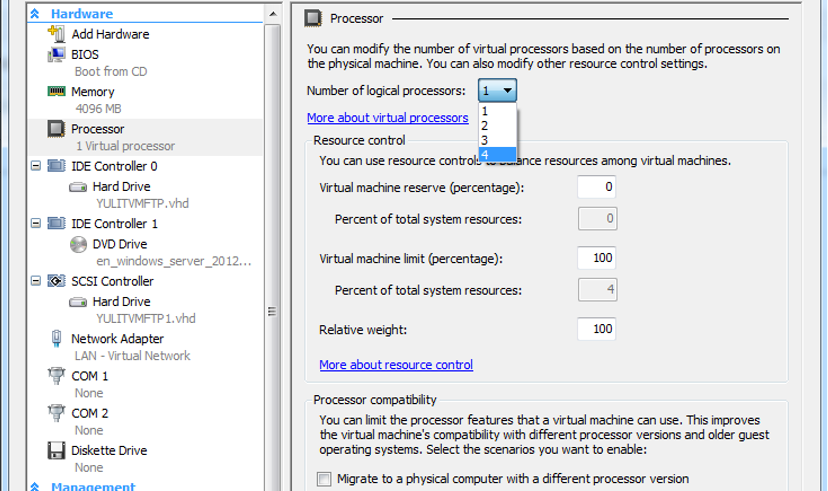
There is a way to add more cores to your VM by editing your VM’s XML file:
Step 1: Shut down your virtual machine
Step 2: Locate and open the XML configuration file of your VM. You can find the (default) location in the Hyper-V settings in the actions pane.
Step 3: Edit the <count type=”integer”> setting and change the number in the desired amount of cores.
<processors>
<count type=”integer”>8</count>
….
….
< /processors>
Step 4: Save the file
Step 5: Start the server and check in the task manager if your server has the correct amount of cores.
 Services Informatiques